8. Running agents and working with outputs
Run a playbook on a proof to get AI findings. Anyone on the team can run a playbook and read the results.
8.1 Run a playbook on a proof
- Open the proof and select its "AI" tab.
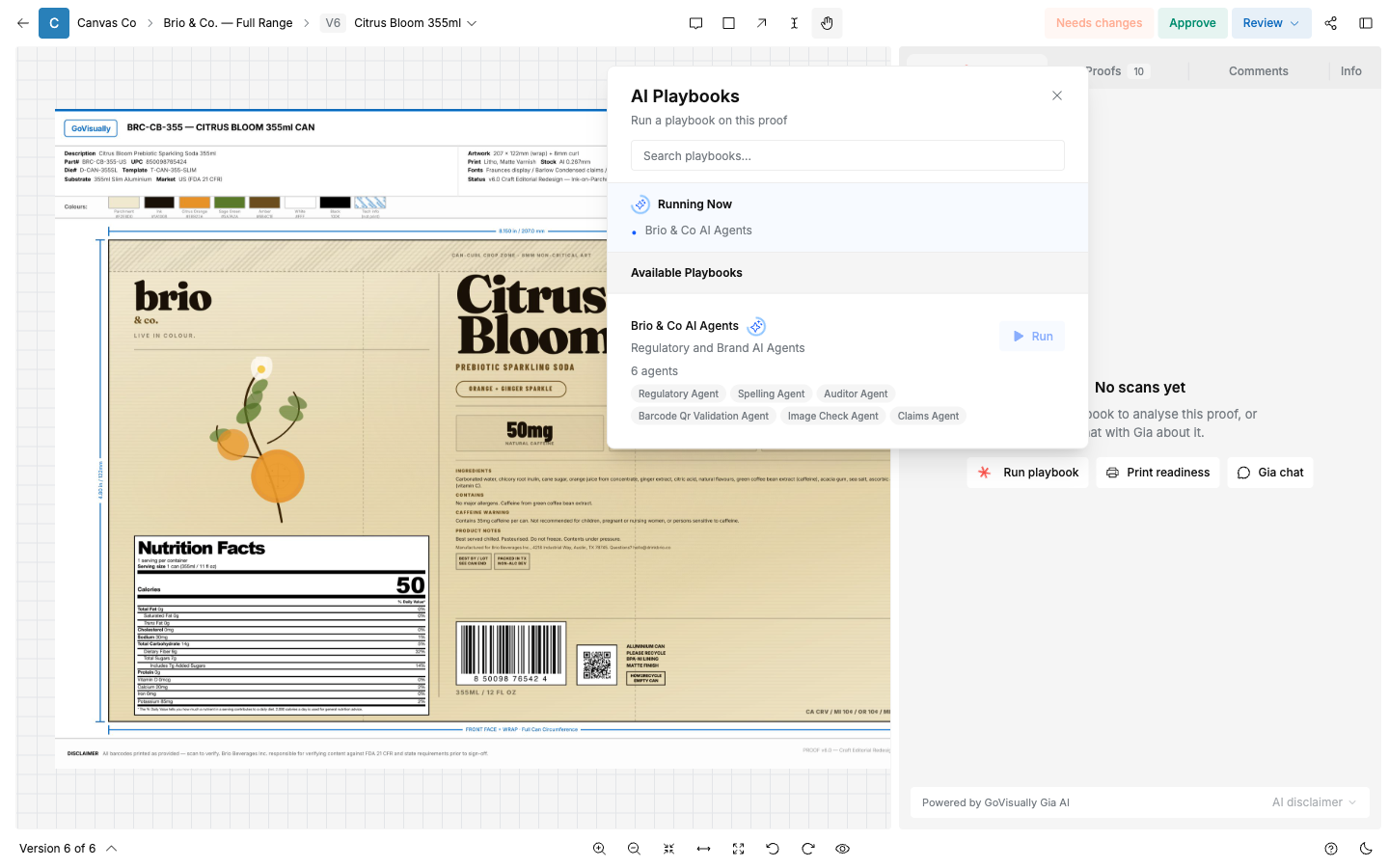
- If no playbook has run yet, you see "No scans yet — Run a playbook to analyse this proof, or chat with Gia about it." Select "Run playbook" (or "Print readiness", or "Gia chat", for those other actions).
- The "AI Playbooks" window lists "Available Playbooks" for this proof, each showing its agent count and agent names. Select "Run" on the playbook you want.
- While it runs, the window shows a "Running Now" entry with the playbook's name and a spinner.
- When the run finishes, the results panel opens.
Notes:
- A run checks one version of one proof — the version you run it on. After uploading a new version, run the playbook again.
- The first step converts the PDF and detects text, colors, barcodes, and visual elements. The agents then check in parallel.
- If a run fails, start it again. If it keeps failing, contact support.
- Past runs for a project are listed on the project's "AI scans" tab.
8.2 The results panel
The results panel has three tabs: "Findings", "Markets", and "Changes".
"Findings"
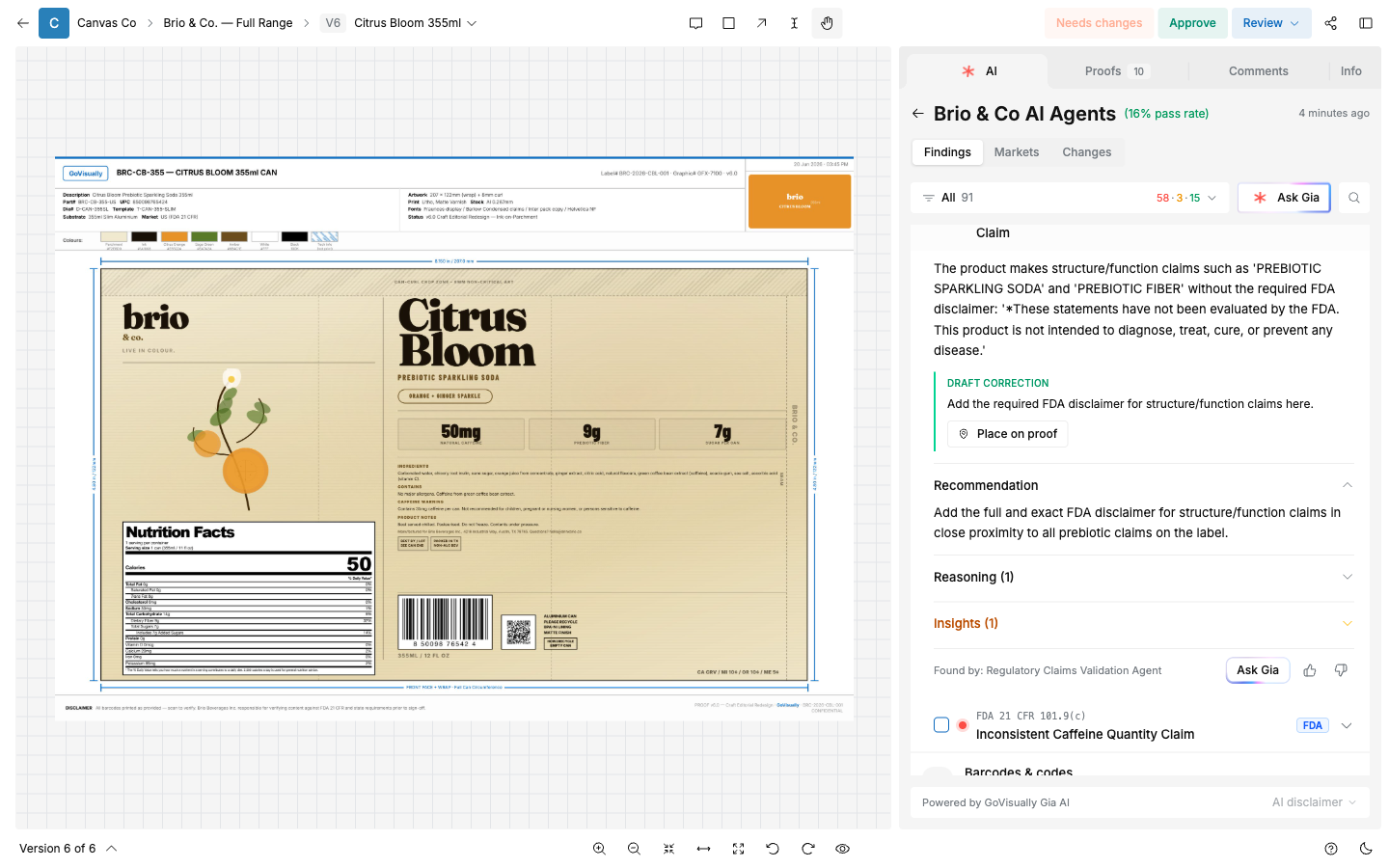
The tab header shows an overall pass rate (for example "16% pass rate"). Every check result is a finding, grouped under the label area it belongs to — for example "Principal display panel", "Nutritional information", "Net quantity", "Claims & efficacy", "Barcodes & codes", "Spelling & language", "Print & technical", "Visual & imagery", "Regulatory compliance". Each group header shows its check count and outcome, for example "4 checks · 4 failed". Select a group to expand it.
Filter with the count chips at the top: a red count for failed, amber for partial, green for passed (for example "58 · 3 · 15").
Each finding row shows a rule or citation reference (for example a rule ID, or "FDA 21 CFR 101.93"), its title, and a market badge (for example "FDA"). Select a row to expand it:
- "Claim" (or similar heading) — the evidence: what the artwork says and why it fails.
- "DRAFT CORRECTION" — a ready-to-use fix, with its own "Place on proof" button.
- "Recommendation" — the suggested fix in your own words.
- "Reasoning ({n})" — supporting evidence, expandable.
- "Insights ({n})" — business impact notes, expandable.
- "Found by: {agent name}" — which agent produced the finding, with an "Ask Gia" button and thumbs up/down feedback icons.
"Markets"
Findings organized by market, for proofs checked against more than one market.
"Changes"
8.3 How to work through findings
The AI is a first pass. Your team owns the call.
- Filter to "Failed". Work through each finding.
- Read the "Reasoning" and check the citation. Confirm the finding is real before acting on it.
- For a real problem: select "Place on proof", so the designer sees it in place. Add a comment with your instruction if needed.
- For a wrong or irrelevant finding: leave it. Findings are AI results, not tasks. There is no dismiss action.
- Check "Partial" findings the same way. These passed in part and need judgment.
- When the designer uploads the corrected version, run the playbook again and confirm the findings pass.
8.4 Understanding finding statuses
| Status | Meaning |
|---|---|
| Passed | The check found no problem. |
| Failed | The check found a problem. Read the recommendation. |
| Partial | The check partly passed. A person must judge the rest. |
| Needs review | The AI could not decide. A person must check. |
| Not applicable | The check does not apply to this artwork. |
8.5 Roles
- RA reviews Market Compliance and Claims findings, and verifies citations.
- R&D reviews findings tied to Product Spec data (ingredients, nutrition values).
- Designer fixes placed findings and uploads the next version.
- Marketing reviews claims wording and visual element findings.
8.6 Validate your playbook with a planted-error test
Before you rely on a playbook for live artwork, prove that it catches the errors you care about. Run a planted-error test:
- Copy a real, correct artwork file.
- Introduce a fixed number of known errors into the copy. Use realistic designer mistakes, not obvious fakes. Examples: a wrong nutrition value, one missing allergen, a barcode from a different SKU, a one-letter typo in an ingredient name, a claim that is not on your approved list.
- Write down every planted error before you run the test.
- Upload the copy as a proof in a test project. Run the playbook on it.
- Compare the findings against your list. Every planted error should appear as a "Failed" finding.
- For each miss: add the rule to your Knowledge Base, or sharpen the agent guidance, and run the test again.
- Keep the test file and the results. Repeat the test after you change the playbook or the Knowledge Base.
The appendix lists realistic planted errors for each product category. Use it as a menu for your test files.