12. Smartnotes
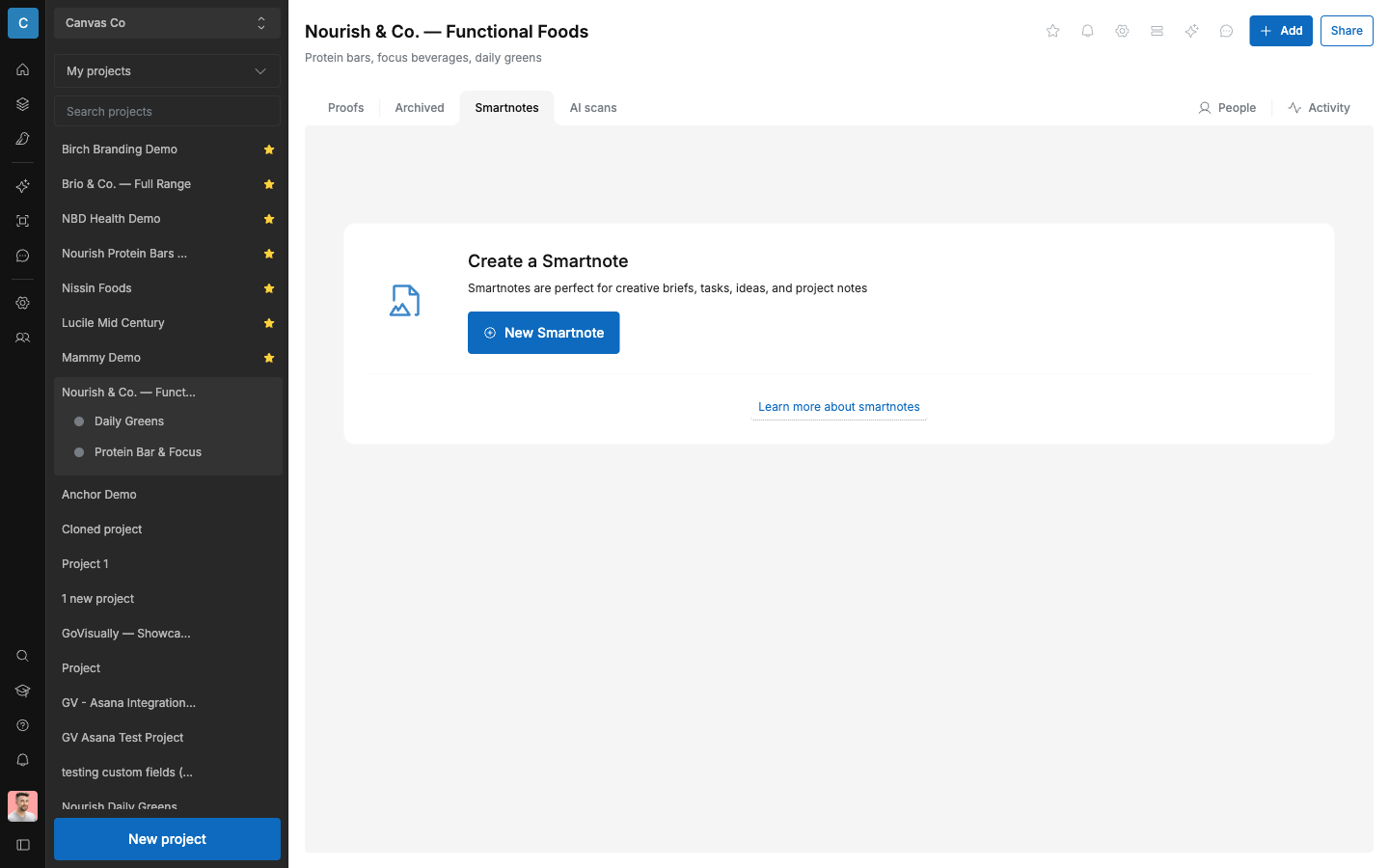
Smartnotes are rich-text notes inside a project. The product describes them: "Smartnotes are perfect for creative briefs, tasks, ideas, and project notes." Use them to keep the brief next to the artwork it describes.
12.1 Create a Smartnote
- Open the project.
- Select the "Smartnotes" tab.
- Select "New Smartnote".
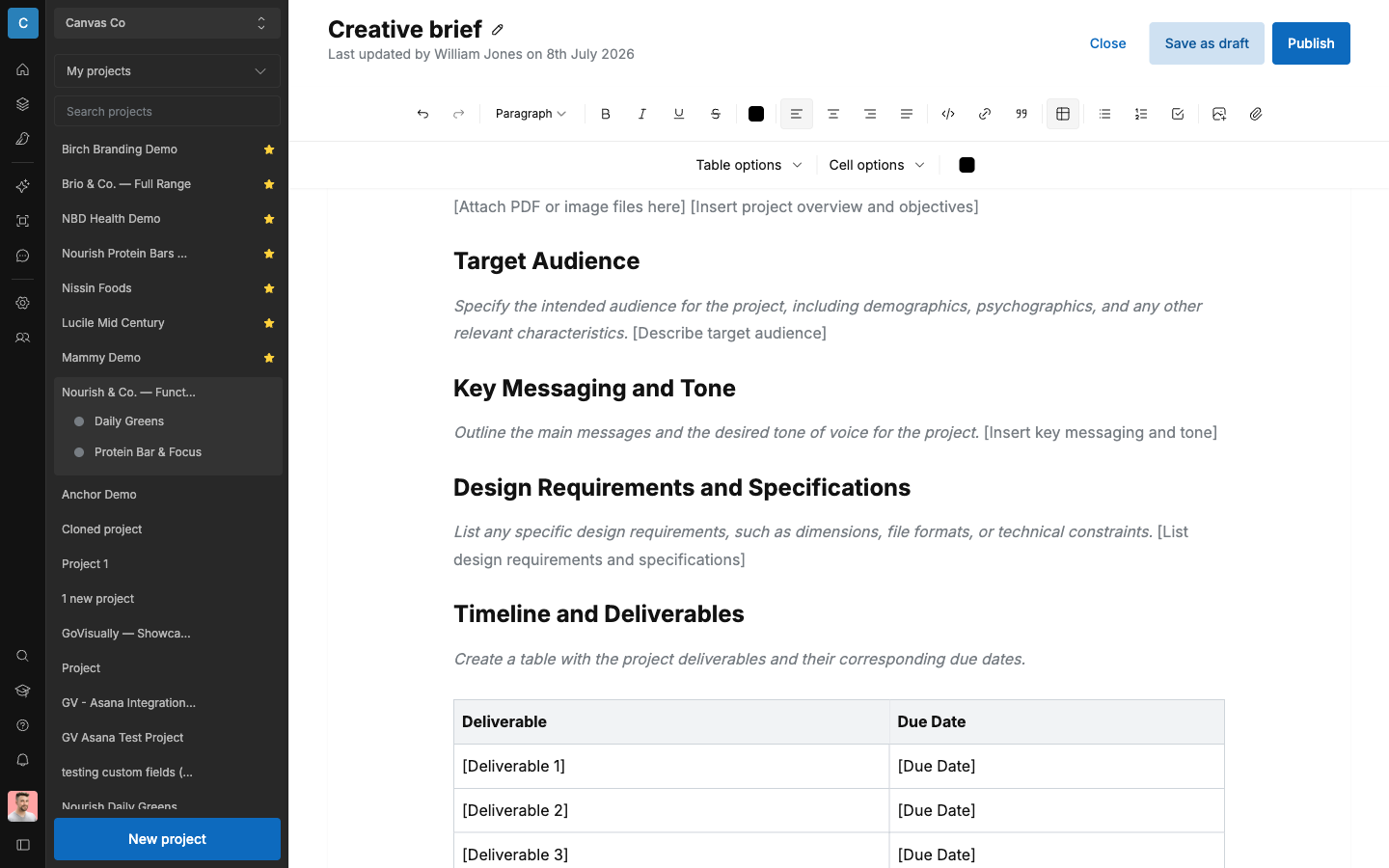
- The empty editor offers a template picker: "Blank note", "Storyboard", "Creative brief", "Meeting Notes", "CPG Packaging Template", "To-Do List", and "See all templates" for more. Select one, or write your own from a blank note. The editor supports rich text formatting: headings, bold/italic/underline/strikethrough, alignment, code, links, quotes, tables, lists, checklists, images, and attachments.
- Select "Save as draft", or "Publish" when it's ready for the team.
The "CPG Packaging Template" is worth calling out: it starts with a "Product Information" table (Product Name, Product Description, Net Weight/Volume, Serving Size, Servings Per Container) — a fast way to capture the spec details a designer needs without leaving GoVisually.
12.2 Manage Smartnotes
- All notes appear as cards on the "Smartnotes" tab.
- Open a note's menu to edit or delete it.
- The number of notes per project is limited by plan (default 3).
12.3 Who sees Smartnotes
- Workspace members can create and edit Smartnotes.
- Reviewers cannot create Smartnotes.
12.4 Ideas for CPG teams
- Creative brief: one Smartnote per project with objectives, mandatory elements, and deadlines.
- RA requirements: the market-specific must-haves for this artwork, so the designer sees them without leaving GoVisually.
- Print specification: die-cut number, substrate, and finish notes for pre-press.