10. GIA Chat
Gia is GoVisually's AI assistant. Ask it questions in plain language about your reviews, findings, and fixes.
10.1 Open a chat
Three entry points:
- Sidebar: select "GIA - AI assistant". The "GoVisually Gia" screen opens, showing "Online" status.
- Floating window: open Gia in a small window while you work on a proof.
- From a finding: select "Ask Gia" on any AI finding (chapter 8). The chat opens with that finding as context.
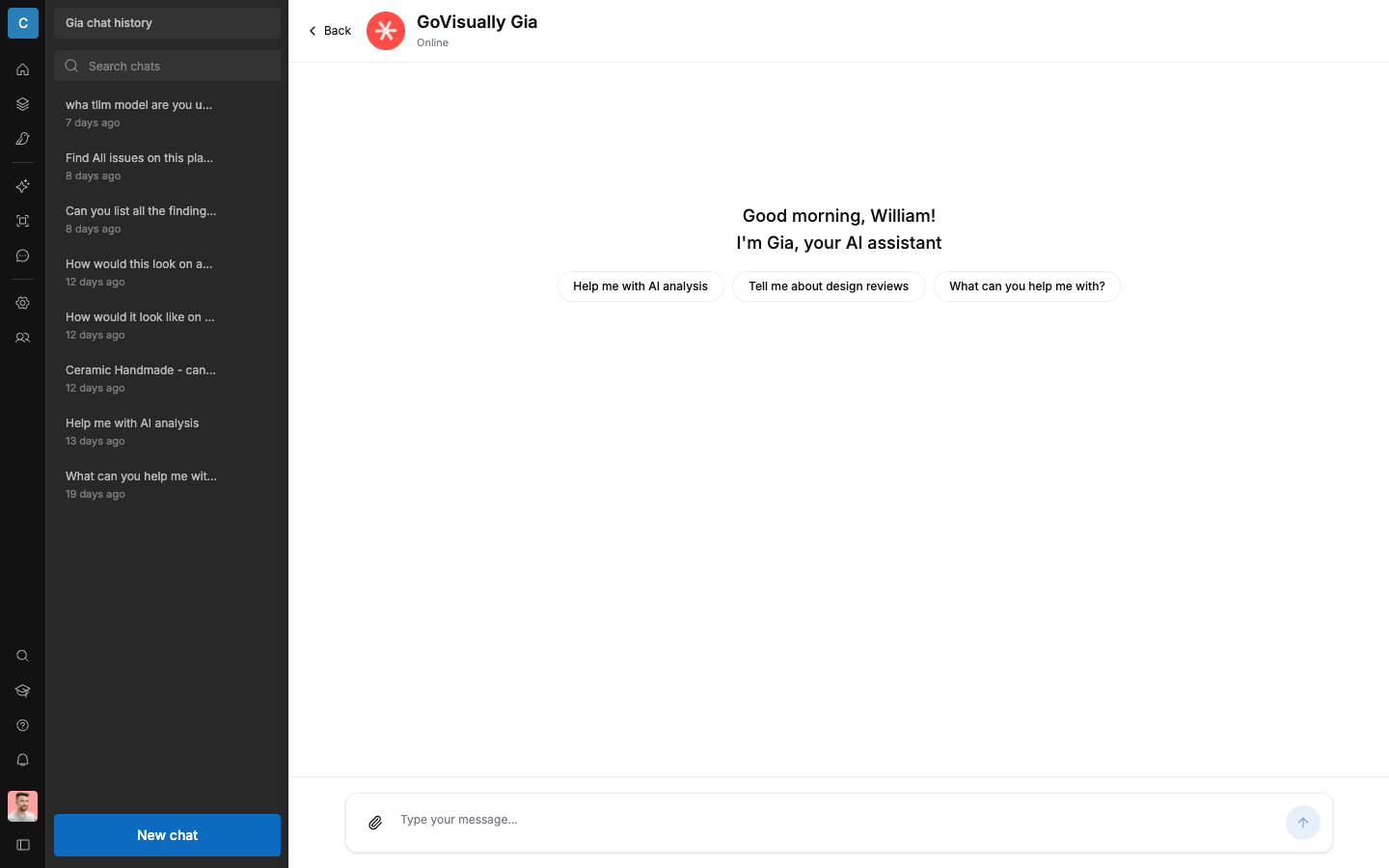
The empty chat greets you ("Good morning, {name}!" — "I'm Gia, your AI assistant") and offers starting points:
- "Help me with AI analysis"
- "Tell me about design reviews"
- "What can you help me with?"
10.2 Ask a question
- Type in the "Type your message…" field.
- Send the message. While Gia works you see "Thinking…".
- Read the answer. Ask follow-up questions in the same chat — Gia remembers the conversation.
10.3 Common tasks
Understand a finding (RA, marketing):
- On a finding, select "Ask Gia".
- Use the suggested prompts: "Explain this finding in detail", "How can I fix this issue?", "What are the compliance implications?".
- Gia explains the finding, the cited rule, and fix options.
Get unblocked (everyone):
- Ask "What can you help me with?" to see Gia's capabilities.
- Ask about your design reviews and AI analysis results.
10.4 Manage your chats
- Select "New chat" to start a fresh conversation.
- Your past conversations are listed in "Gia chat history". Open any conversation to continue it.
- Delete a conversation from the history list.
- Chats are private to you, within your workspace.
10.5 Good practice
- Give context. "Is 'supports immunity' acceptable on a US supplement label?" gets a better answer than "Is this claim OK?".
- Gia is an assistant, not the approver. Verify regulatory answers against the cited rules — the decision stays with your team.